This comprehensive API integration guide will walk you through integrating NotiGrid's notification API into your Node.js application, from initial setup to sending your first multi-channel notification across email, SMS, and Slack.
Prerequisites
Before you begin this REST API integration, make sure you have:
- A NotiGrid account (sign up here)
- Node.js 18+ installed
- Basic knowledge of REST APIs and TypeScript
- Your API key from the NotiGrid dashboard
How It Works
Here's the complete integration architecture showing how your Node.js application connects to NotiGrid's notification API and delivers messages across multiple channels:
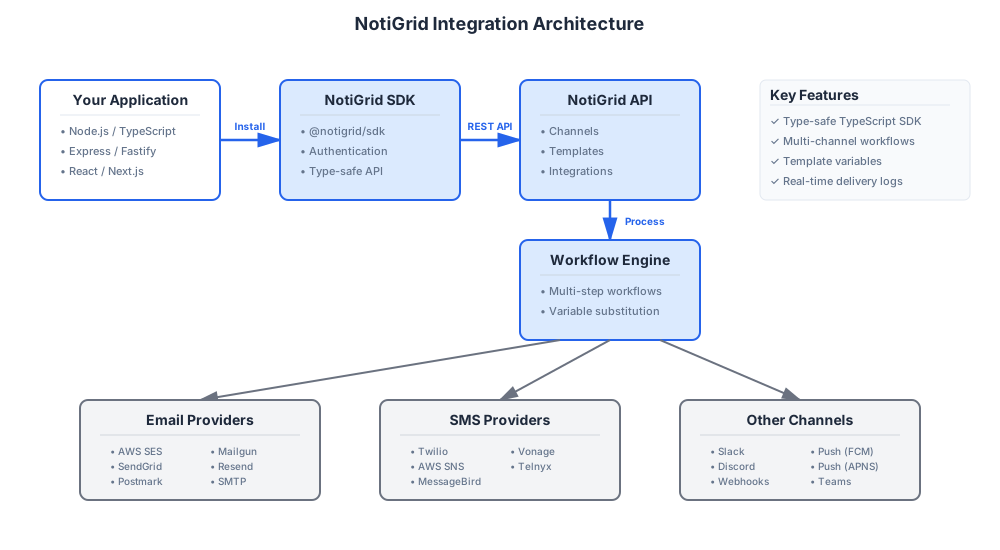
The integration flow:
- Your Application - Install the TypeScript SDK in your Node.js/Express/Next.js app
- NotiGrid SDK - Type-safe client handles authentication and API requests
- NotiGrid API - Processes channels, templates, and routing logic
- Workflow Engine - Orchestrates multi-channel delivery with variable substitution
- Providers - Delivers to email (SES, SendGrid), SMS (Twilio), Slack, and more
Step 1: Install the SDK
Install the JavaScript/TypeScript SDK using your preferred package manager:
# npm
npm install @notigrid/sdk

# yarn
yarn add @notigrid/sdk

# pnpm
pnpm add @notigrid/sdk
The SDK works with both JavaScript and TypeScript projects.
Step 2: Initialize the API Client
Create a NotiGrid API client instance with your authentication credentials:
TypeScript:
import { NotiGrid } from '@notigrid/sdk'

const notigrid = new NotiGrid({
  apiKey: process.env.NOTIGRID_API_KEY,
  // Optional: specify REST API environment
  baseURL: 'https://api.notigrid.com'
})
JavaScript (ES6):
import { NotiGrid } from '@notigrid/sdk'

const notigrid = new NotiGrid({
  apiKey: process.env.NOTIGRID_API_KEY,
  baseURL: 'https://api.notigrid.com'
})
JavaScript (CommonJS):
const { NotiGrid } = require('@notigrid/sdk')

const notigrid = new NotiGrid({
  apiKey: process.env.NOTIGRID_API_KEY,
  baseURL: 'https://api.notigrid.com'
})Important: Never commit your API key to version control. Use environment variables for secure API authentication!
Step 3: Set Up Your First Integration
Email Integration (AWS SES)
- Navigate to Integrations in your NotiGrid dashboard
- Click Add Integration
- Select Email
- Choose AWS SES as your provider
- Configure your credentials:
{
  provider: 'ses',
  region: 'us-east-1',
  accessKeyId: process.env.AWS_ACCESS_KEY_ID,
  secretAccessKey: process.env.AWS_SECRET_ACCESS_KEY,
  fromEmail: 'notifications@yourdomain.com'
}
SMS Integration (Twilio)
For SMS notifications:
{
  provider: 'twilio',
  accountSid: process.env.TWILIO_ACCOUNT_SID,
  authToken: process.env.TWILIO_AUTH_TOKEN,
  phoneNumber: process.env.TWILIO_PHONE_NUMBER
}
Slack Integration
For Slack notifications via webhook integration:
- Create a Slack webhook URL from your Slack workspace
- Add the webhook integration to NotiGrid:
{
  provider: 'slack',
  webhookUrl: process.env.SLACK_WEBHOOK_URL
}
Webhook Integration
For custom webhook integration with your own endpoints:
{
  provider: 'webhook',
  url: 'https://your-app.com/webhook/notifications',
  method: 'POST',
  headers: {
    'Authorization': `Bearer ${process.env.WEBHOOK_SECRET}`
  }
}
This webhook integration allows you to receive notification events and integrate with any external API or service.
Step 4: Create a Notification Channel
Channels orchestrate notifications across multiple integrations:
const channel = await notigrid.channels.create({
  name: 'user_welcome',
  description: 'Welcome flow for new users',
  steps: [
    {
      order: 0,
      stepType: 'direct_send',
      integrationId: 'email-integration-id',
      templateId: 'welcome-email-template-id'
    },
    {
      order: 1,
      stepType: 'direct_send',
      integrationId: 'sms-integration-id',
      templateId: 'welcome-sms-template-id'
    }
  ]
})
Step 5: Create Templates
Templates define the content of your notifications:
const template = await notigrid.templates.create({
  name: 'welcome-email',
  integration: 'email',
  subject: 'Welcome to {{appName}}!',
  body: `
    Hi {{userName}},

    Welcome to {{appName}}! We're excited to have you on board.

    Click here to get started: {{ctaLink}}

    Best regards,
    The {{appName}} Team
  `,
  variables: ['userName', 'appName', 'ctaLink']
})
Step 6: Send Your First Notification
Now you're ready to send notifications:
try {
  await notigrid.notify({
    channelId: channel.id,
    variables: {
      userName: 'John Doe',
      appName: 'MyApp',
      ctaLink: 'https://myapp.com/get-started'
    },
    to: 'user@example.com'
  })

  console.log('Notification sent successfully!')
} catch (error) {
  console.error('Failed to send notification:', error)
}
Step 7: Monitor Your Notifications
View all sent notifications in your dashboard:
- Navigate to Logs
- Filter by channel, status, or time range
- View detailed delivery information
Advanced Features
Template Variables
Use dynamic variables in your templates:
{{userName}} - User's name
{{#if premium}}Premium content{{/if}} - Conditional content
{{#each items}}{{this}}{{/each}} - Loops
Multi-channel Workflows
Create complex notification flows:
{
  steps: [
    // Send email first
    { order: 0, stepType: 'direct_send', integrationId: 'email' },
    // If email opens, send SMS
    { order: 1, stepType: 'channel_subscribers', sourceChannelId: 'email-opened' },
    // Webhook for analytics
    { order: 2, stepType: 'webhook', integrationId: 'analytics-webhook' }
  ]
}
Error Handling
Always handle errors gracefully:
try {
  await notigrid.notify({...})
} catch (error) {
  if (error.code === 'INVALID_TEMPLATE') {
    // Handle template errors
  } else if (error.code === 'RATE_LIMIT_EXCEEDED') {
    // Handle rate limiting
  } else {
    // Handle other errors
  }
}
Best Practices
1. Use Environment Variables
NOTIGRID_API_KEY=your-key-here
AWS_ACCESS_KEY_ID=your-aws-key
AWS_SECRET_ACCESS_KEY=your-aws-secret
2. Implement Retry Logic
async function sendWithRetry(payload, maxRetries = 3) {
  for (let i = 0; i < maxRetries; i++) {
    try {
      return await notigrid.notify(payload)
    } catch (error) {
      if (i === maxRetries - 1) throw error
      await sleep(Math.pow(2, i) * 1000) // Exponential backoff
    }
  }
}
3. Test in Staging First
Always test notifications in a staging environment before production.
4. Monitor Usage
Keep track of your notification volume to stay within plan limits:
const usage = await notigrid.billing.getUsage()
console.log(`Used: ${usage.current}/${usage.limit}`)
Troubleshooting
Notifications Not Sending
- Check integration configuration
- Verify template variables match
- Review logs for errors
- Ensure API key has correct permissions
Rate Limiting
If you hit rate limits:
// Implement queue with rate limiting
import PQueue from 'p-queue'

const queue = new PQueue({
  interval: 1000,
  intervalCap: 10 // 10 requests per second
})

await queue.add(() => notigrid.notify({...}))
Next Steps
Frequently Asked Questions
How long does the NotiGrid API integration take?
The complete integration typically takes 15-30 minutes for basic setup. You can send your first notification within 15 minutes of starting.
Which programming languages are supported?
NotiGrid provides an official TypeScript/JavaScript SDK for Node.js applications. The REST API can be used with any programming language including Python, PHP, Ruby, Go, and Java.
What notification channels does NotiGrid support?
NotiGrid supports email (AWS SES, SendGrid, Postmark, Mailgun), SMS (Twilio, AWS SNS, MessageBird), push notifications (FCM, APNS), Slack, Discord, Teams, and custom webhooks.
Can I use NotiGrid with Express or Next.js?
Yes! The NotiGrid SDK works with any Node.js framework including Express, Fastify, Next.js, NestJS, and more.
Does NotiGrid support multi-channel workflows?
Yes, you can create complex multi-channel workflows that send notifications across email, SMS, and Slack simultaneously or in sequence based on user preferences and delivery rules.
Is there a free tier for API integration testing?
Yes, NotiGrid offers a free tier perfect for development and testing your API integration before going to production.
Need Help?
Ready to send your first notification?
Get started with NotiGrid today and send notifications across email, SMS, Slack, and more.