

Introduction
Welcome to NotiGrid! This comprehensive guide will walk you through setting up your notification infrastructure and sending your first notification in under 15 minutes.
By the end of this tutorial, you'll have:
- ✅ Installed the NotiGrid SDK
- ✅ Configured your API credentials
- ✅ Sent your first multi-channel notification
- ✅ Viewed delivery logs in the dashboard
- ✅ Understood basic error handling
Estimated time: 15 minutes Difficulty: Beginner Prerequisites: Basic JavaScript/TypeScript knowledge
What Is NotiGrid?
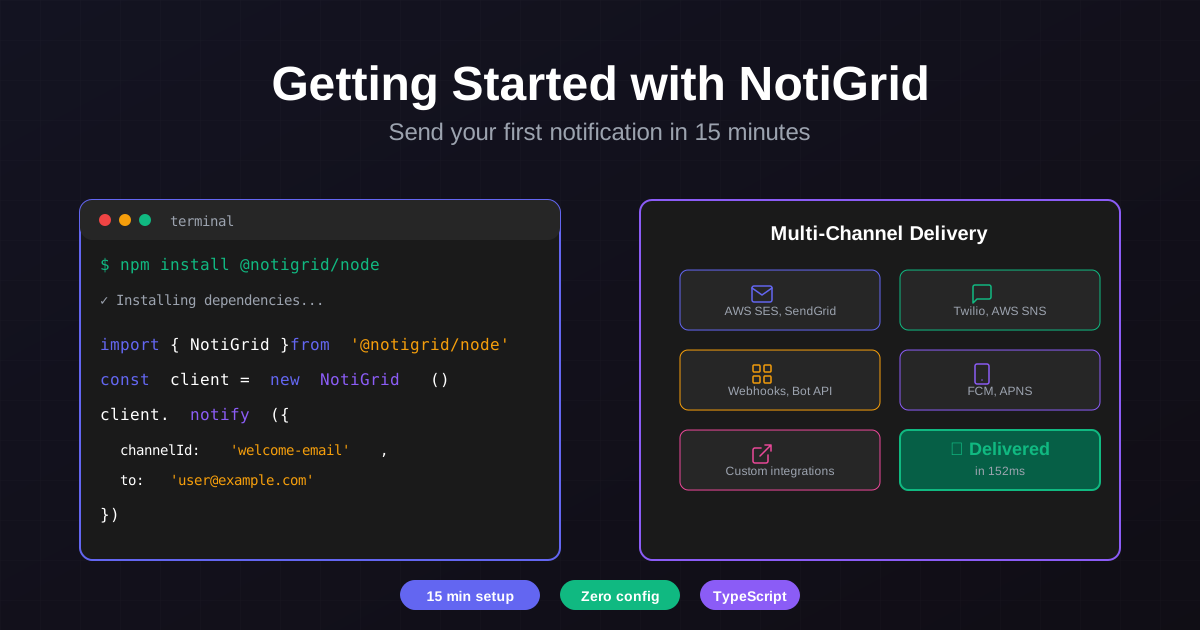
NotiGrid is a notification infrastructure platform that lets you send notifications across multiple channels—Email, SMS, Slack, Push notifications, and Webhooks—all from a single unified API.
Instead of integrating with each provider separately (AWS SES, Twilio, SendGrid, etc.), NotiGrid provides:
- Unified API - One API for all channels
- Multi-channel Workflows - Send to email, fallback to SMS
- Template Management - Reusable templates with variables
- Real-time Logs - Monitor delivery status
- Provider Failover - Automatic backup if primary fails
- Type-safe SDKs - First-class TypeScript support
For a deeper understanding of notification infrastructure, see our guide: What Is Notification Infrastructure?
Prerequisites
Before starting, ensure you have:
Required:
- Node.js 16.x or higher
- npm or yarn package manager
- A NotiGrid account (sign up free)
Optional:
- TypeScript 4.5+ (recommended)
- Code editor (VS Code, WebStorm, etc.)
- Basic understanding of async/await
Check your Node.js version:
node --version
# Should output v16.0.0 or higher
Step 1: Create Your NotiGrid Account
- Go to notigrid.com/signup
- Sign up with email or GitHub
- Verify your email address
- Complete onboarding (choose your use case)
- You'll land on the dashboard
Tip: Use your work email to collaborate with teammates later.
Step 2: Get Your API Key
API keys authenticate your application with NotiGrid.
In the NotiGrid Dashboard:
- Navigate to Settings → API Keys
- Click Create New Key
- Name it (e.g., "Development" or "Production")
- Select environment:
DevelopmentorProduction - Copy the key (it will only show once!)
- Store it securely in your environment variables
Security Best Practices:
- ✅ Store keys in
.envfile (never commit to git) - ✅ Use different keys for dev/staging/production
- ✅ Rotate keys regularly
- ✅ Never expose keys in frontend code
Example .env file:
NOTIGRID_API_KEY=ngk_dev_abc123xyz456...Step 3: Install the SDK
NotiGrid provides official SDKs for multiple languages. This guide uses the Node.js/TypeScript SDK.
Using npm:
npm install @notigrid/sdkUsing yarn:
yarn add @notigrid/sdkUsing pnpm:
pnpm add @notigrid/sdkVerify installation:
npm list @notigrid/sdk
# Should show: @notigrid/sdk@1.x.x
For other languages, see our SDK documentation.
Step 4: Initialize the SDK
Create a new file for your notification client.
TypeScript:
import { NotiGrid } from '@notigrid/sdk'

// Load from environment variable
const client = new NotiGrid(process.env.NOTIGRID_API_KEY!)

export default client
JavaScript (ES6):
import { NotiGrid } from '@notigrid/sdk'

const client = new NotiGrid(process.env.NOTIGRID_API_KEY)

export default client
JavaScript (CommonJS):
const { NotiGrid } = require('@notigrid/sdk')

const client = new NotiGrid(process.env.NOTIGRID_API_KEY)

module.exports = client
With error handling:
import { NotiGrid } from '@notigrid/sdk'

if (!process.env.NOTIGRID_API_KEY) {
  throw new Error('NOTIGRID_API_KEY environment variable is required')
}

const client = new NotiGrid(process.env.NOTIGRID_API_KEY, {
  timeout: 10000, // 10 second timeout
  retries: 3,     // Retry failed requests 3 times
})

export default client
Step 5: Configure Your First Integration
Before sending notifications, configure at least one provider integration.
Email Integration (Recommended First)
Option 1: Use Resend (Easiest)
- Sign up at resend.com
- Get your API key
- In NotiGrid Dashboard → Integrations → Email
- Select Resend and paste your API key
- Verify your sending domain
Option 2: Use AWS SES
- Set up AWS SES in your AWS account
- Verify your sending domain/email
- In NotiGrid → Integrations → Email → AWS SES
- Enter your AWS credentials (Access Key ID, Secret Key, Region)
For a complete integration guide, see: NotiGrid API Integration Guide
SMS Integration (Optional)
- Sign up at Twilio
- Get your Account SID and Auth Token
- Purchase a phone number
- Add to NotiGrid → Integrations → SMS → Twilio
Slack Integration (Optional)
- Create a Slack Incoming Webhook
- Copy the webhook URL
- Add to NotiGrid → Integrations → Slack
Step 6: Send Your First Notification
Now let's send a test notification!
Simple Email Example:
import client from './notigrid-client'

async function sendWelcomeEmail() {
  try {
    const result = await client.notify({
      channelId: 'welcome-email',
      to: 'user@example.com',
      variables: {
        userName: 'John Doe',
        activationLink: 'https://app.example.com/activate',
      },
    })

    console.log('✅ Notification sent!', result)
    // Output: { id: 'ntf_123...', status: 'sent' }
  } catch (error) {
    console.error('❌ Failed to send notification:', error)
  }
}

sendWelcomeEmail()
Multi-Channel Example:
async function sendOrderConfirmation(orderId: string, userEmail: string, userPhone: string) {
  try {
    // Send email AND SMS
    const result = await client.notify({
      channelId: 'order-confirmation',
      to: {
        email: userEmail,
        sms: userPhone,
      },
      variables: {
        orderId,
        orderTotal: '$129.99',
        estimatedDelivery: 'Dec 15, 2025',
      },
    })

    console.log('✅ Sent to both email and SMS:', result)
  } catch (error) {
    console.error('❌ Error:', error.message)
  }
}

sendOrderConfirmation('ORD-123', 'customer@example.com', '+1234567890')
With Workflow and Fallback:
async function sendCriticalAlert(userId: string) {
  try {
    // Try Slack first, fallback to Email, then SMS
    const result = await client.notify({
      channelId: 'critical-alert',
      userId,
      variables: {
        alertType: 'Security',
        message: 'Suspicious login detected',
        timestamp: new Date().toISOString(),
      },
      workflow: {
        primary: 'slack',
        fallback: ['email', 'sms'],
      },
    })

    console.log('✅ Alert delivered via:', result.channel)
  } catch (error) {
    console.error('❌ All channels failed:', error)
  }
}

sendCriticalAlert('user_123')
Step 7: View Logs in Dashboard
After sending your notification:
- Go to NotiGrid Dashboard → Logs
- You'll see your notification with:
- Status:
sent,delivered,failed,queued - Channel: Email, SMS, Slack, etc.
- Timestamp: When it was sent
- Provider: Which provider delivered it
- Full details: Click to see complete payload
- Status:
Log Statuses:
queued- Accepted by NotiGrid, waiting to sendsent- Sent to provider (e.g., email sent to SendGrid)delivered- Confirmed delivered by providerfailed- Delivery failed (see error details)bounced- Email bounced (invalid address)
Advanced Usage
Error Handling Best Practices
import { NotiGrid, NotiGridError } from '@notigrid/sdk'

async function sendNotificationWithRetry() {
  const maxRetries = 3
  let attempt = 0

  while (attempt < maxRetries) {
    try {
      const result = await client.notify({
        channelId: 'welcome-email',
        to: 'user@example.com',
        variables: { userName: 'John' },
      })

      console.log('✅ Success:', result)
      return result
    } catch (error) {
      attempt++

      if (error instanceof NotiGridError) {
        console.error(`❌ Attempt ${attempt} failed:`, error.message)
        console.error('Error code:', error.code)
        console.error('Status:', error.statusCode)

        // Don't retry on validation errors
        if (error.statusCode === 400) {
          throw error
        }

        // Retry on server errors or network issues
        if (attempt < maxRetries) {
          const delay = Math.pow(2, attempt) * 1000 // Exponential backoff
          console.log(`⏳ Retrying in ${delay}ms...`)
          await new Promise(resolve => setTimeout(resolve, delay))
        }
      } else {
        throw error
      }
    }
  }

  throw new Error(`Failed after ${maxRetries} attempts`)
}
Batch Notifications
async function sendBulkNotifications(users: Array<{ email: string; name: string }>) {
  const results = await Promise.allSettled(
    users.map(user =>
      client.notify({
        channelId: 'weekly-digest',
        to: user.email,
        variables: { userName: user.name },
      })
    )
  )

  const successful = results.filter(r => r.status === 'fulfilled').length
  const failed = results.filter(r => r.status === 'rejected').length

  console.log(`✅ Sent: ${successful}, ❌ Failed: ${failed}`)
}
TypeScript Type Safety
// Define your notification channels
type NotificationChannels =
  | 'welcome-email'
  | 'order-confirmation'
  | 'password-reset'
  | 'critical-alert'

// Type-safe notification function
async function sendTypedNotification(
  channel: NotificationChannels,
  to: string,
  variables: Record<string, string>
) {
  return client.notify({
    channelId: channel,
    to,
    variables,
  })
}

// Usage - autocomplete works!
sendTypedNotification('welcome-email', 'user@example.com', {
  userName: 'John',
})
Troubleshooting Common Issues
Issue: "Invalid API Key"
Cause: API key is incorrect or not set
Solution:
// Check if API key is loaded
console.log('API Key:', process.env.NOTIGRID_API_KEY?.substring(0, 10) + '...')

// Make sure .env file is loaded
import dotenv from 'dotenv'
dotenv.config()
Issue: "Channel not found"
Cause: Channel ID doesn't exist in your NotiGrid account
Solution:
- Go to Dashboard → Channels
- Create a new channel or use existing channel ID
- Make sure you're using the correct channel ID (case-sensitive)
Issue: "No integration configured"
Cause: You haven't set up an email/SMS provider
Solution:
- Go to Dashboard → Integrations
- Configure at least one provider (Resend, AWS SES, Twilio, etc.)
- Test the integration
Issue: "Notification sent but not received"
Possible causes:
- Email in spam - Check spam folder
- Invalid recipient - Verify email/phone number
- Provider issue - Check provider status
- Unverified domain - Verify sending domain in provider
Debug steps:
- Check NotiGrid Dashboard → Logs for delivery status
- Look for error messages in log details
- Verify provider credentials
- Test with a different recipient
Issue: "Module not found: @notigrid/sdk"
Solution:
# Re-install the package
npm install @notigrid/sdk --save

# Clear node_modules and reinstall
rm -rf node_modules package-lock.json
npm install
Frequently Asked Questions
How long does it take to set up NotiGrid?
Most developers send their first notification within 15 minutes of signing up. Complete integration (including templates and workflows) typically takes 1-2 days.
Do I need a credit card to get started?
No! NotiGrid offers a free tier with 10,000 notifications per month. No credit card required to start.
Can I use NotiGrid with my existing email provider?
Yes! NotiGrid supports "bring your own" integrations. You can use your existing AWS SES, SendGrid, Twilio, or Resend accounts. NotiGrid handles the orchestration, retries, and logging.
What programming languages does NotiGrid support?
Official SDKs:
- Node.js / TypeScript (npm)
- Python (coming soon)
- Go (coming soon)
- PHP (coming soon)
You can also use the REST API directly from any language. See API documentation.
How do I handle failed notifications?
NotiGrid automatically retries failed notifications with exponential backoff. You can also:
- Configure fallback channels (Email → SMS)
- Set up webhooks for delivery status updates
- Check logs in the dashboard
- Implement custom retry logic in your code
Is NotiGrid GDPR compliant?
Yes. NotiGrid is fully GDPR compliant. We provide:
- Data encryption at rest and in transit
- User data export and deletion
- Audit logs for compliance
- DPA (Data Processing Agreement) available
How much does NotiGrid cost?
Free tier: 10,000 notifications/month Starter: $99/month for 100,000 notifications Growth: $299/month for 500,000 notifications Enterprise: Custom pricing for 1M+ notifications
See full pricing details.
Next Steps
Now that you've sent your first notification, here's what to do next:
1. Create Templates
Learn how to create reusable notification templates with variables:
2. Build Multi-Channel Workflows
Set up sophisticated workflows with fallbacks:
3. Configure User Preferences
Let users control which notifications they receive:
4. Set Up Webhooks
Receive delivery status updates in real-time:
5. Integrate with Your Framework
Next.js:
// app/api/notifications/route.ts
import { NotiGrid } from '@notigrid/sdk'

const client = new NotiGrid(process.env.NOTIGRID_API_KEY!)

export async function POST(request: Request) {
  const { email, name } = await request.json()

  await client.notify({
    channelId: 'welcome-email',
    to: email,
    variables: { userName: name },
  })

  return Response.json({ success: true })
}
Express.js:
const express = require('express')
const { NotiGrid } = require('@notigrid/sdk')

const app = express()
const client = new NotiGrid(process.env.NOTIGRID_API_KEY)

app.post('/send-notification', async (req, res) => {
  try {
    await client.notify({
      channelId: 'order-confirmation',
      to: req.body.email,
      variables: req.body.variables,
    })
    res.json({ success: true })
  } catch (error) {
    res.status(500).json({ error: error.message })
  }
})
Additional Resources
- 📚 Complete API Reference - Full API documentation
- 🔧 SDK Documentation - Advanced SDK features
- 🎥 Video Tutorials - Visual walkthroughs
- 📖 Blog - Guides, best practices, and updates
- 🐛 GitHub Issues - Report bugs or request features
Conclusion
Congratulations! 🎉 You've successfully:
- ✅ Set up your NotiGrid account
- ✅ Installed and configured the SDK
- ✅ Sent your first notification
- ✅ Learned error handling and best practices
NotiGrid makes notification infrastructure simple - no more managing multiple provider APIs, handling retries manually, or building logging systems from scratch.
What's Next?
- Book a demo to see advanced features
- Read the architecture guide to understand how it all works
- Explore our blog for more guides and best practices
Need Help?
- 📧 Email: support@notigrid.com
- 💬 Live Chat: Available in the dashboard
- 📖 Documentation: docs.notigrid.com
- 🐦 Twitter: @notigrid
Happy sending! 🚀
Ready to send your first notification?
Get started with NotiGrid today and send notifications across email, SMS, Slack, and more.